Human-in-the-loop
Pause workflows for human approval, input, or review.
FlowDrop's interrupt system enables workflows to pause execution and request user input before continuing. This is essential for approval workflows, data collection, decision points, and quality control.
Every interrupt prompt below ships as a live, interactive component. Explore its states, props, and edge cases in FlowDrop Storybook.
Interrupt types
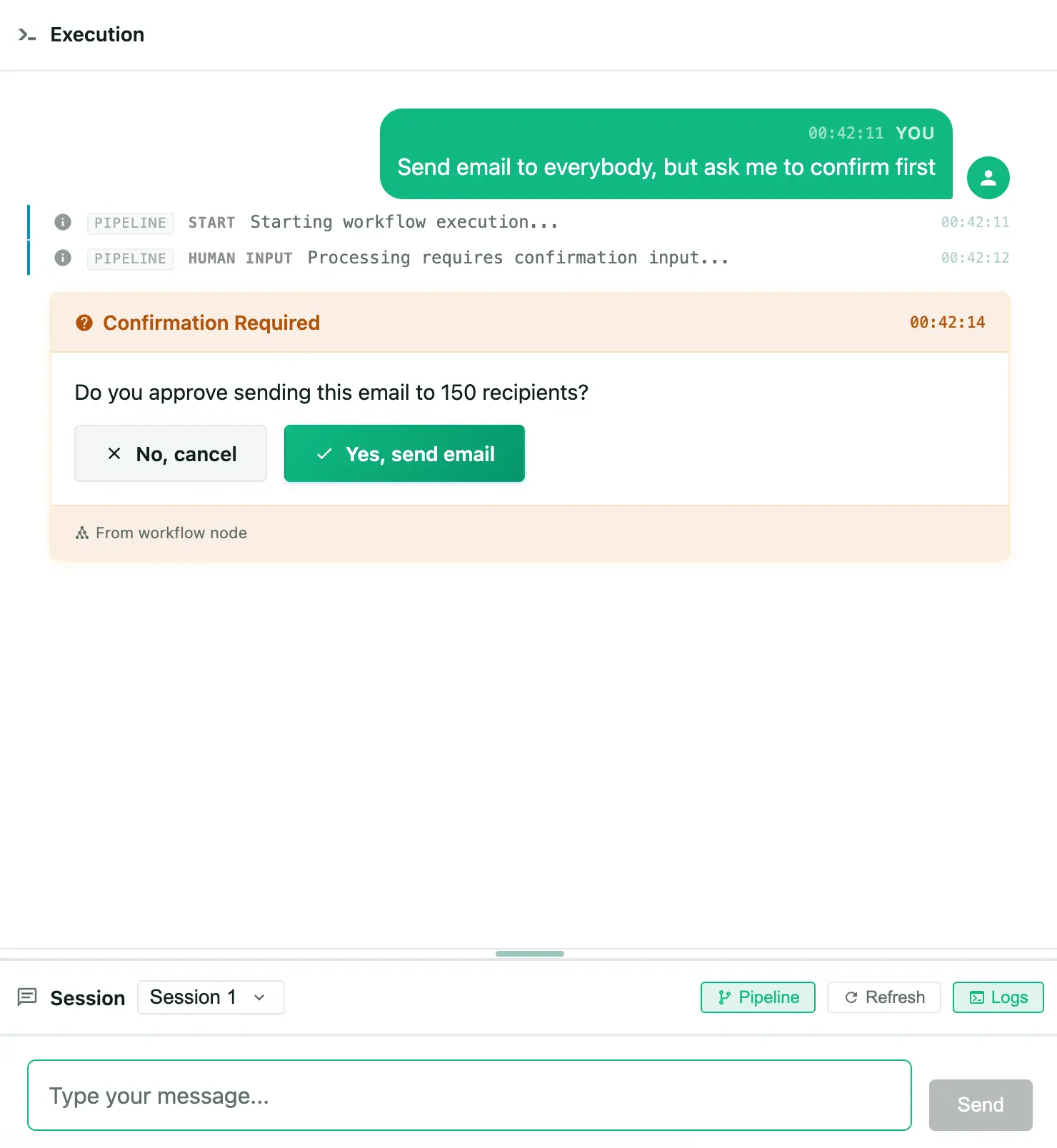
Confirmation
Simple yes/no prompt for binary decisions:
{
  "interrupt_type": "confirmation",
  "message": "Do you approve sending this email to 150 recipients?",
  "confirm_label": "Yes, send email",
  "cancel_label": "No, cancel"
}Response: boolean
ConfirmationPrompt in Storybook
Try the confirmed, declined, submitting, and error states.
Choice
Single or multiple selection from predefined options:
{
  "interrupt_type": "choice",
  "message": "Select the output format:",
  "options": [
    { "value": "json", "label": "JSON", "description": "Structured data" },
    { "value": "csv", "label": "CSV", "description": "Spreadsheet format" }
  ],
  "multiple": false
}Response: string (single) or string[] (multiple)
ChoicePrompt in Storybook
Compare single-select and multi-select variants.
Text input
Free-form text entry:
{
  "interrupt_type": "text_input",
  "message": "Provide additional context:",
  "placeholder": "Enter your notes...",
  "multiline": true,
  "max_length": 1000
}Response: string
TextInputPrompt in Storybook
See single-line, multiline, and length-constrained inputs.
Form
Complex data entry using JSON Schema:
{
  "interrupt_type": "form",
  "message": "Complete the configuration:",
  "schema": {
    "type": "object",
    "properties": {
      "priority": { "type": "string", "enum": ["low", "medium", "high"] },
      "notify": { "type": "boolean", "title": "Send notification" }
    }
  },
  "default_values": { "priority": "medium", "notify": true }
}Response: object (matching schema structure)
Review
Review proposed field changes with per-field accept/reject decisions and visual diffs:
{
  "interrupt_type": "review",
  "message": "Review these proposed changes:",
  "changes": [
    {
      "field": "title",
      "label": "Page Title",
      "original": "About Us",
      "proposed": "About Our Company"
    },
    {
      "field": "body",
      "label": "Body Content",
      "original": "<p>Welcome to our site.</p>",
      "proposed": "<p>Welcome to our company website.</p>"
    }
  ]
}Response: ReviewResolution with per-field decisions and summary counts.
ReviewPrompt in Storybook
Inspect per-field diffs, accept/reject controls, and many-change views.
Architecture
sequenceDiagram
    participant W as Workflow Execution
    participant B as Backend
    participant F as Frontend
    participant U as User

    W->>B: Pause & create interrupt
    B->>F: Send interrupt request
    F->>U: Render prompt
    U->>F: Submit response
    F->>B: Resolve interrupt
    B->>W: Resume workflow
Frontend integration
The ChatPanel automatically detects and renders interrupts in messages. For manual integration:
import { getInstance } from '@flowdrop/flowdrop/editor';
import { InterruptService } from '@flowdrop/flowdrop/playground';

const fd = getInstance();
const interruptService = InterruptService.getInstance();

// Read pending interrupts reactively
const pending = $derived(fd.interrupts.getPending());

// Resolve an interrupt
async function resolveInterrupt(interruptId: string, value: unknown) {
  const result = fd.interrupts.startSubmit(interruptId, value);
  if (!result.valid) return;

  try {
    // Pass the instance's endpoint config first
    await interruptService.resolveInterrupt(fd.api.config, interruptId, value);
    fd.interrupts.submitSuccess(interruptId);
  } catch (error) {
    fd.interrupts.submitFailure(interruptId, String(error));
  }
}
Using prompt components directly
<script lang="ts">
  import { ConfirmationPrompt } from '@flowdrop/flowdrop/playground';
</script>

<ConfirmationPrompt
  config={{
    message: 'Do you approve this action?',
    confirm_label: 'Approve',
    cancel_label: 'Reject'
  }}
  status="pending"
  allowCancel={true}
  onConfirm={() => handleConfirm()}
  onCancel={() => handleCancel()}
/>
Backend integration
Message metadata format
When a workflow requires input, the backend sends a message with interrupt metadata:
{
  "id": "msg-123",
  "role": "assistant",
  "content": "I need your approval to proceed.",
  "metadata": {
    "type": "interrupt_request",
    "interrupt_id": "int-456",
    "interrupt_type": "confirmation",
    "message": "Do you approve this action?",
    "confirm_label": "Approve",
    "cancel_label": "Reject"
  }
}
API endpoints
| Endpoint | Method | Purpose |
|---|---|---|
/interrupts/{id} | GET | Get interrupt details |
/interrupts/{id} | POST | Resolve interrupt |
/interrupts/{id}/cancel | POST | Cancel interrupt |
/playground/sessions/{id}/interrupts | GET | List session interrupts |
State management
The interrupt store uses a state machine with these transitions:
- idle — Awaiting user input
- submitting — User response being sent
- resolved — Successfully processed
- error — Submission failed (can retry)
Resolved interrupts remain visible but disabled, showing the user's selection.
Best practices
- Clear messages — Write actionable prompts ("Do you approve sending this email to 150 recipients?" not "Proceed?")
- Meaningful labels — Use descriptive button labels ("Yes, send email" not "Yes")
- Default values — Provide sensible defaults for form fields
- Cancel behavior — Only set
allowCancel: falsefor mandatory interrupts - Error handling — Always handle resolution failures gracefully