Watch your workflow think
A first look at the redesigned FlowDrop editor. Test right where you build, watch each run light up node by node, and fix what broke without leaving the canvas. It's planned for the next minor release, and we'd love your feedback.
Building a workflow is the fun half. The other half is finding out what it actually does when real input hits it. Until now, that meant leaving the canvas: open the Playground somewhere else, dig through a log, then go hunting for the node that misbehaved.
So we redesigned the FlowDrop editor around one idea: the place you build is the place you test. Type a message, press Run, and watch the answer travel across your canvas, one node at a time. When something breaks, the broken node tells you so, right where you’d fix it.
This is a preview of the next minor release. Everything on this page is built and running, and none of it is final yet, which makes this the best moment for your feedback. Click around the demos below, then tell us what you think at the end.
Edit | Test: one switch, two jobs
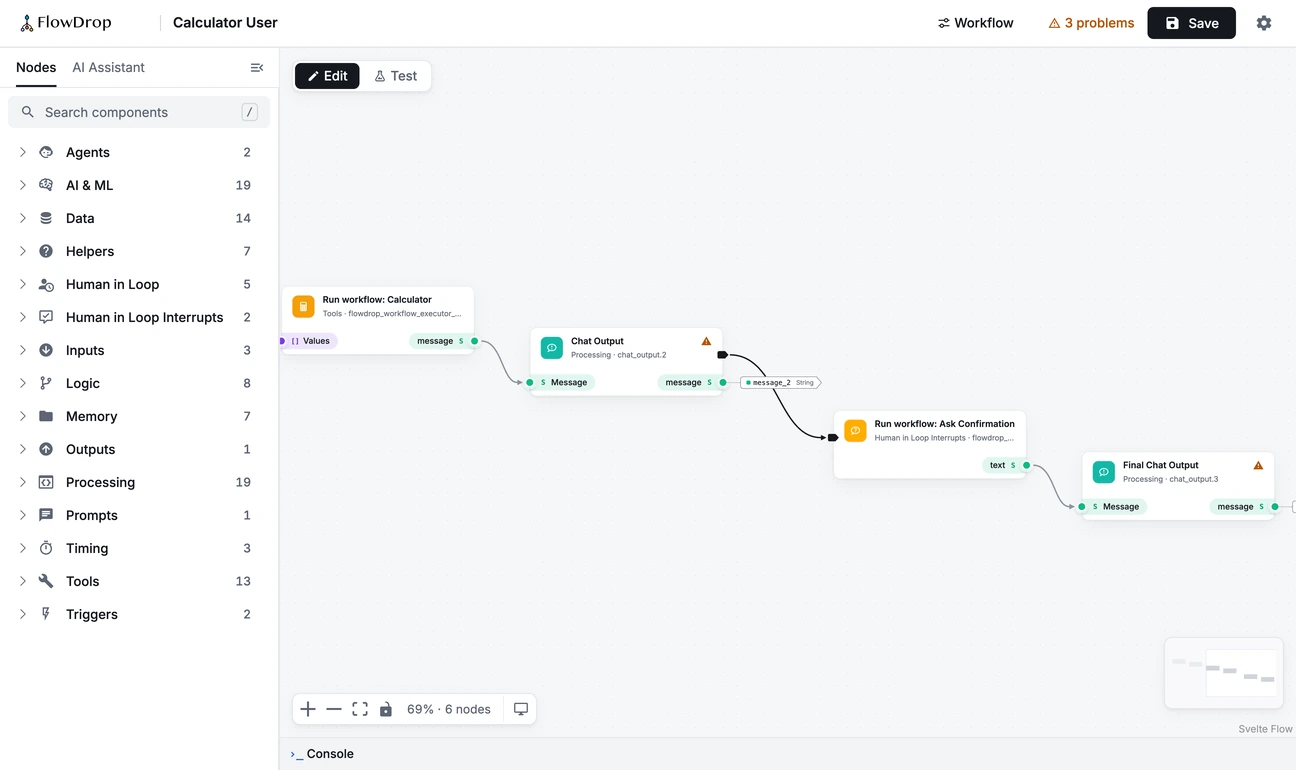
In the top-left corner of the canvas sits the switch that changes how you work.

Edit is your workshop: the node library on the left and every setting within reach. Test swaps the library for the Playground, docked right beside your workflow, so you can talk to it while you look at it. Press T to flip between them at any time.
Your conversation comes along for the ride. Hop over to Edit to tweak a prompt, come back, and carry on where you left off. If you’ve changed something since the last save, Send turns into Save & send, so you never test yesterday’s version by mistake.
Run it, and watch it happen
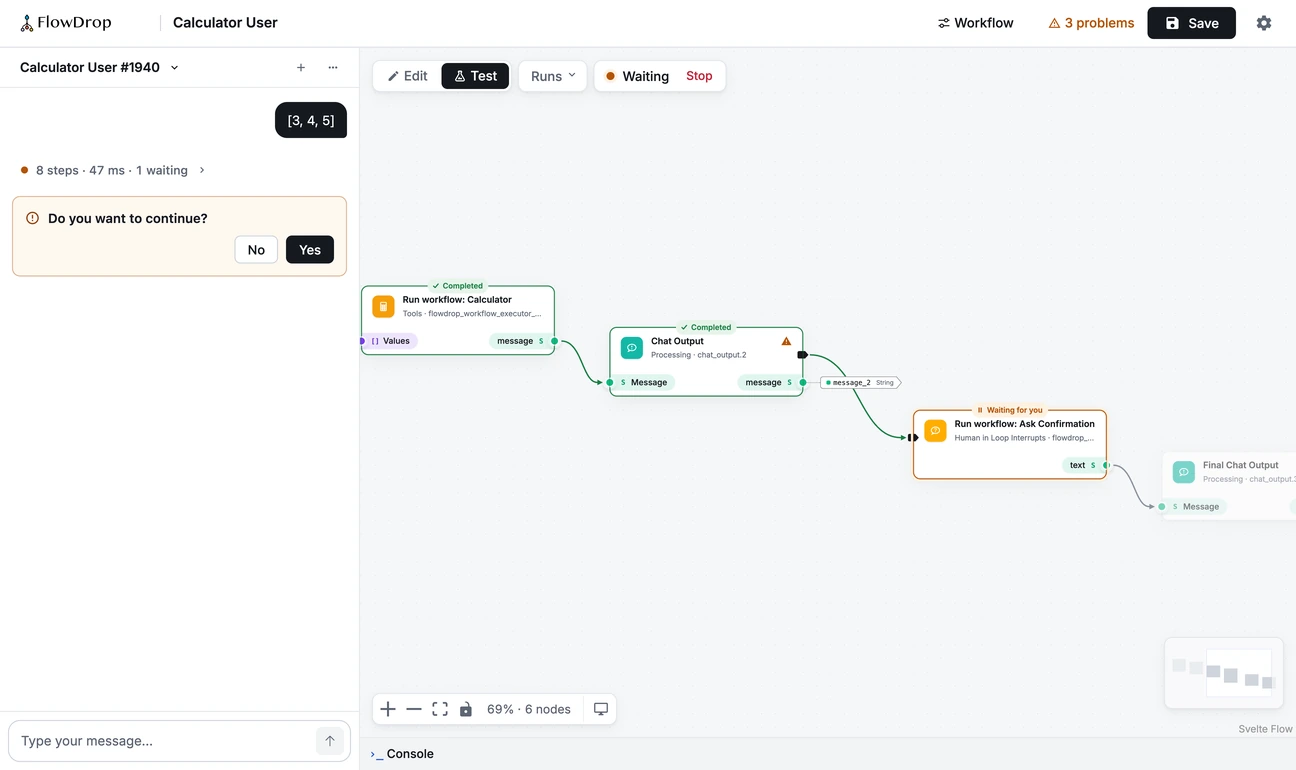
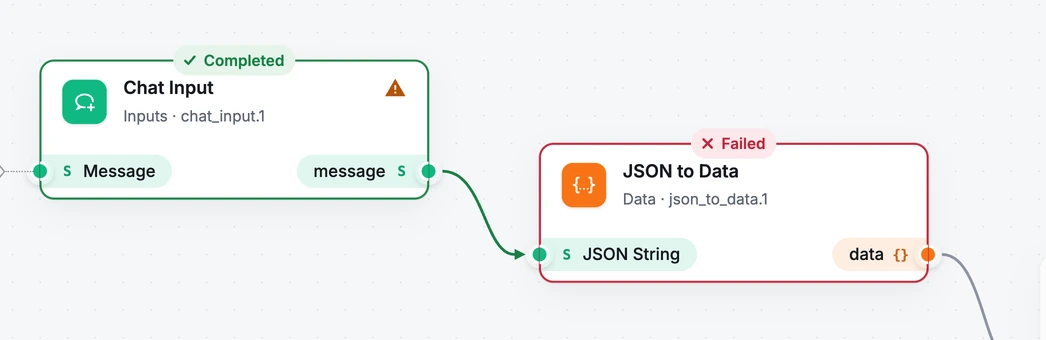
Press Send or Run and the canvas comes alive. Every node the run reaches gets a status pill: Completed, Waiting for you, Failed or Skipped. The wires the run actually took light up, so you can trace its path at a glance.
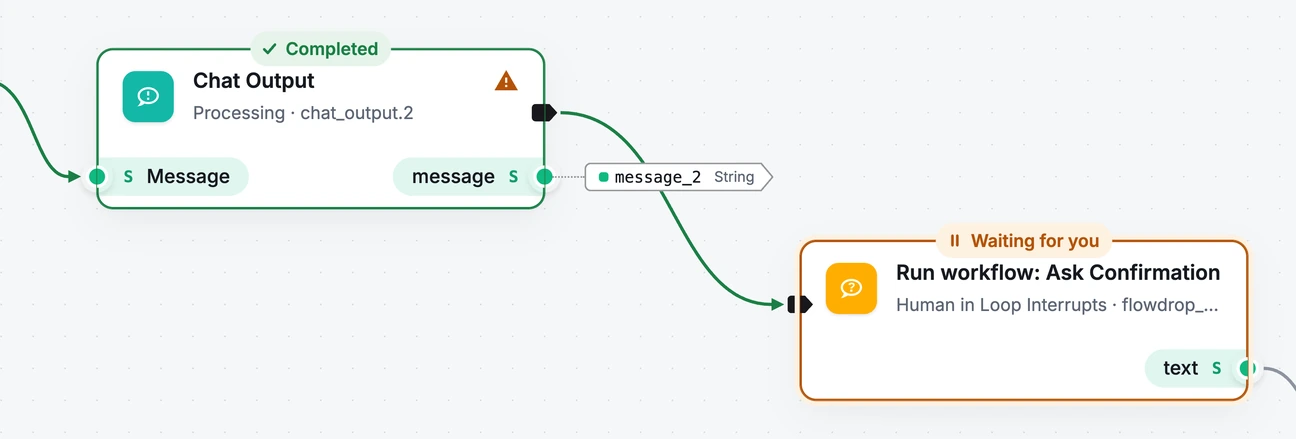
When a step needs a person, it says so in amber, and the Playground asks the question right there in the conversation. Busy runs stay tidy: every step of a turn folds into one quiet line, like “8 steps · 40 ms · 1 waiting”, that opens up when you want the details.
The run pill next to the switch keeps you oriented. It tells you what the run is doing and gives you Stop while it’s going. Wander back to Edit while a run waits for you, and the pill offers Open to jump straight back to the question.
![The docked Playground: the message [3, 4, 5], a folded steps line reading 8 steps, 40 ms, 1 waiting, and an amber card asking Do you want to continue? with No and Yes](/blog/editor-2026-10/conversation.webp)
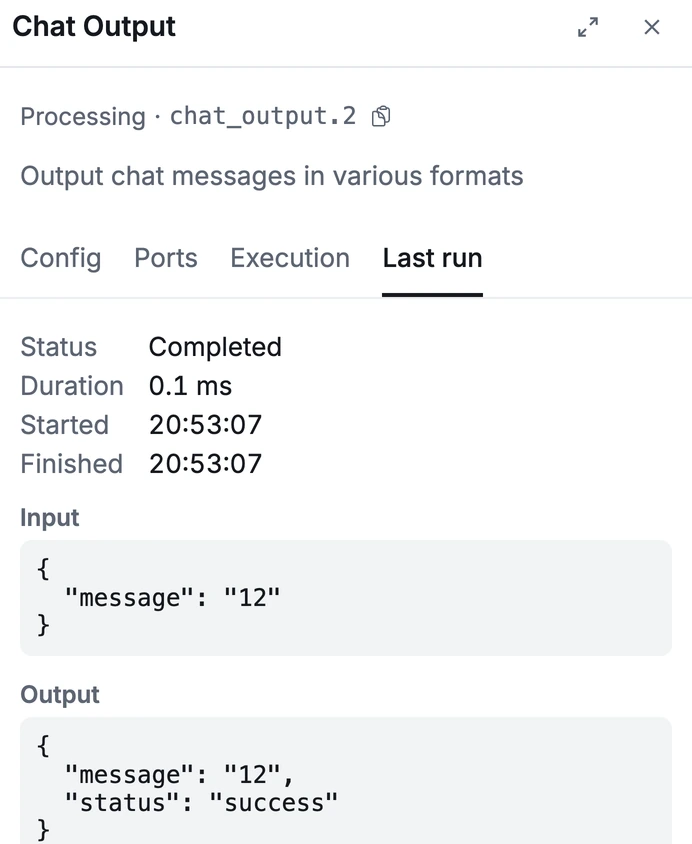
Click any node in Test mode and a sheet slides over the canvas with its Last run: the status, the timing, and the exact input and output. No log files, and no wondering which run you’re looking at.
When something breaks
This is where a workflow editor earns its keep. Send something your workflow can’t handle, and the failure has nowhere to hide. The node turns red, and the conversation names it and says why.
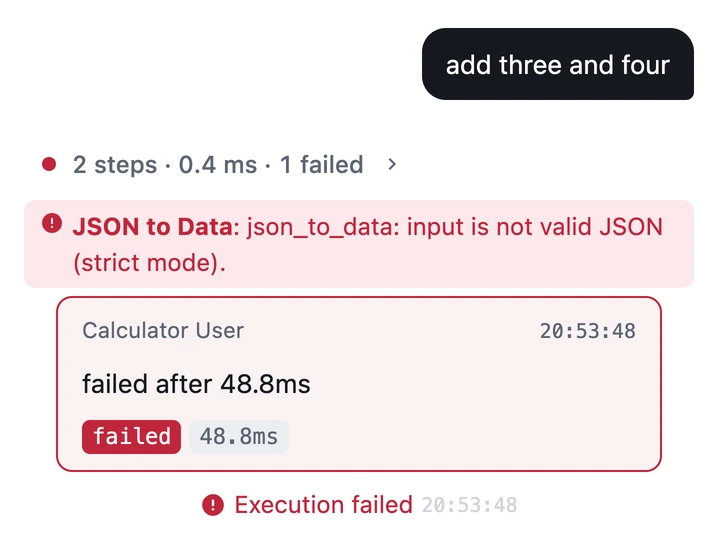
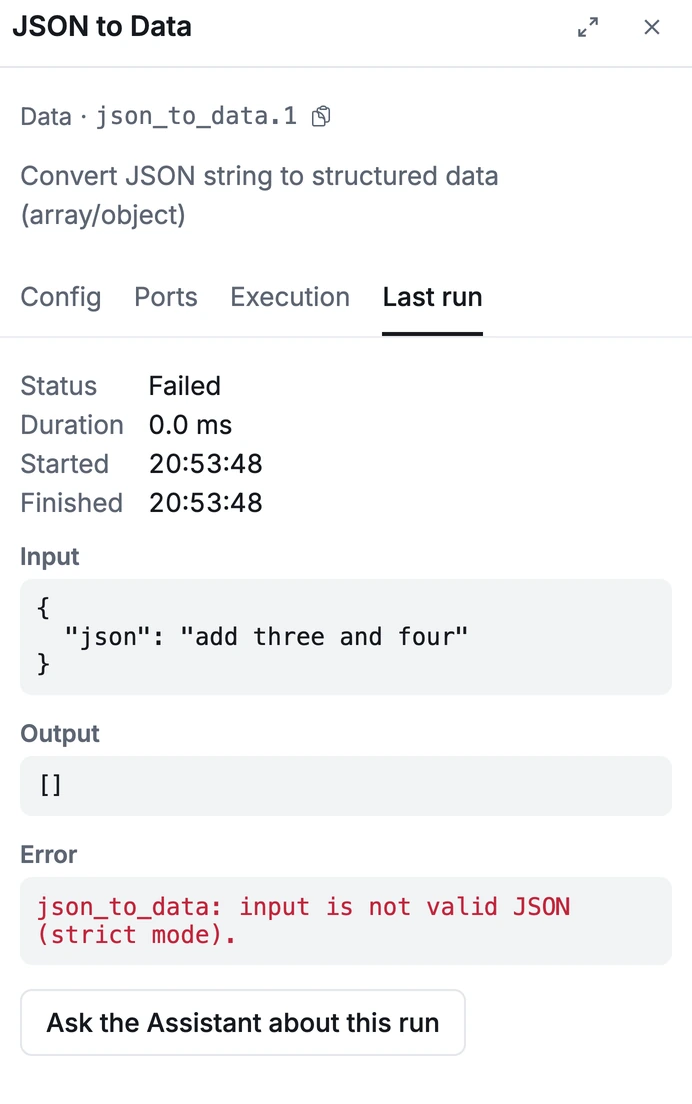
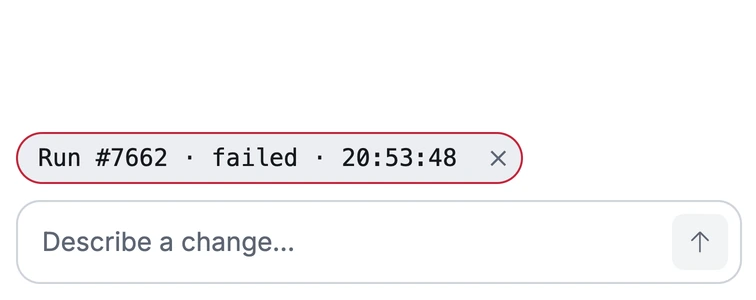
Then comes our favourite part: Ask the Assistant about this run. One click switches to Edit mode, opens the AI Assistant and attaches the failed run. Now you can ask “why did this fail?” and get an answer about this run, not a guess about runs in general.
Forms, not just chat
Not every workflow is a conversation. If yours takes inputs, Test mode opens on a clean Inputs card: one field per input, a Run button (⌘↵ works too), Fill from last run, and your earlier runs listed underneath so you can reuse their values.
![The Inputs card: a Values field holding [12, 30, 7.5], Fill from last run, a Run button, the earlier runs list, and the result 49.5](/blog/editor-2026-10/inputs-card.webp)
The workflow interface, right on the canvas
Every workflow has an interface: the inputs it accepts and the outputs it hands back. It’s the workflow’s contract with whatever calls it, whether that’s an API, another workflow, an agent, or you in the Playground. Until now that contract lived in a settings tab, out of sight while you built.
Now the interface is drawn on the canvas as labels, attached to the very ports they feed, with the type beside each name. Glance at the edges of a workflow and you know what goes in and what comes out.
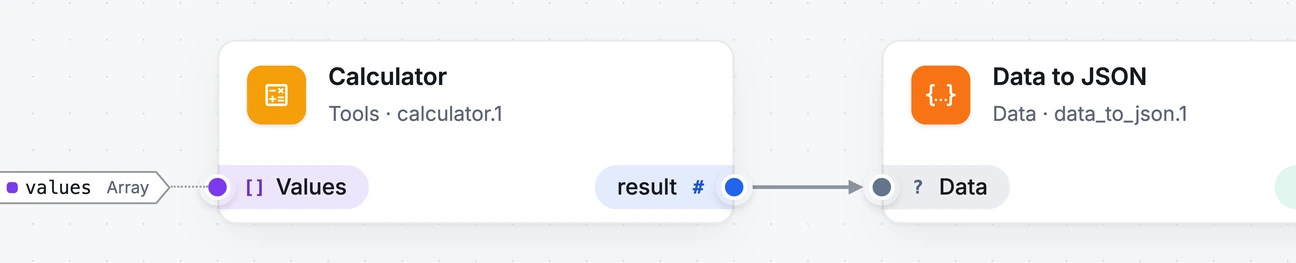
Outputs get the same treatment on the other side, so you can read a workflow’s whole contract by looking at its edges.
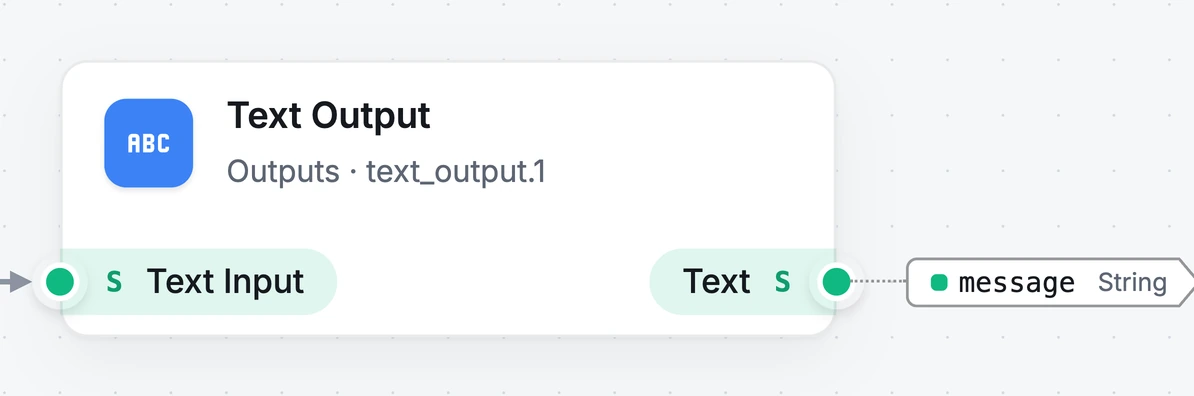
Hover a label and it explains itself in plain words: what it is, who passes the value, and which port it fills. Double-click it to rename it, or right-click for more.
Want to add to the interface? Right-click any port and choose Expose as workflow output…. No settings dialog, no hunting for the right tab.
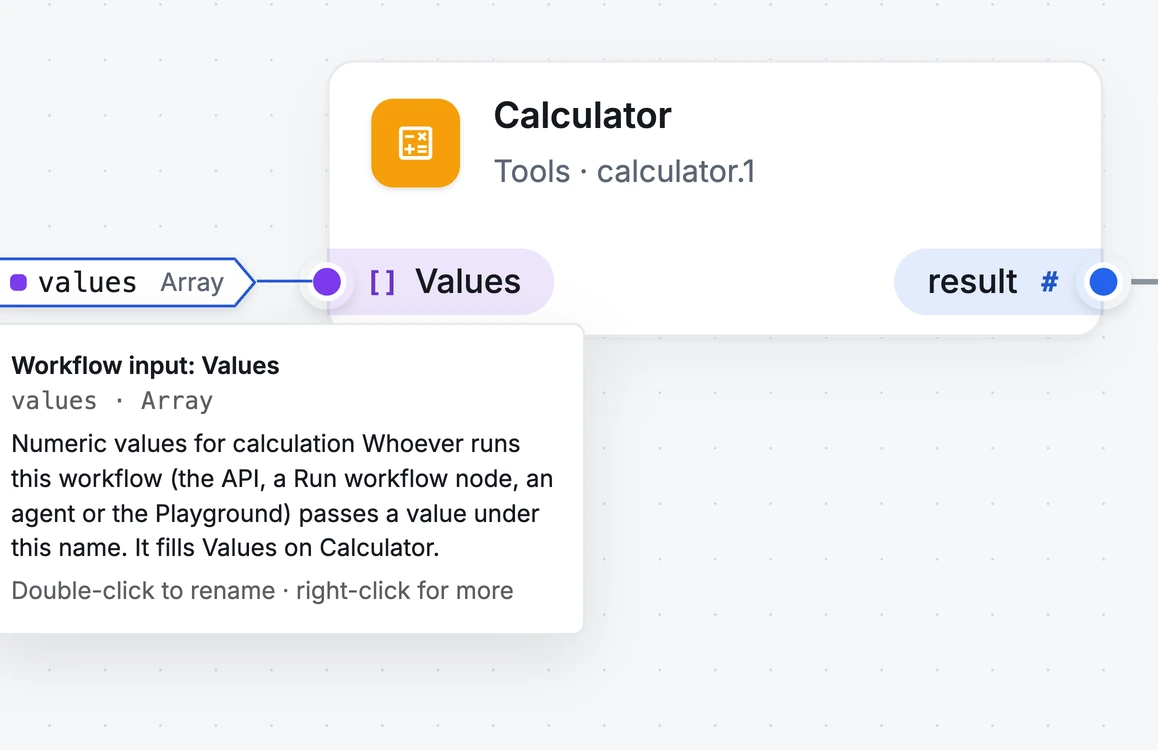
Ports wear their type too, as a small symbol beside the name. You can see what fits where before you drag a single wire:
- S text
- # number
- B true / false
- [ ] list
- { } object
- ? anything
Right-click, right there
The thing you want to do is usually about the thing under your pointer. So every card, every port and the canvas now has its own right-click menu, each offering what makes sense for that spot. Pick a tab to see each one:
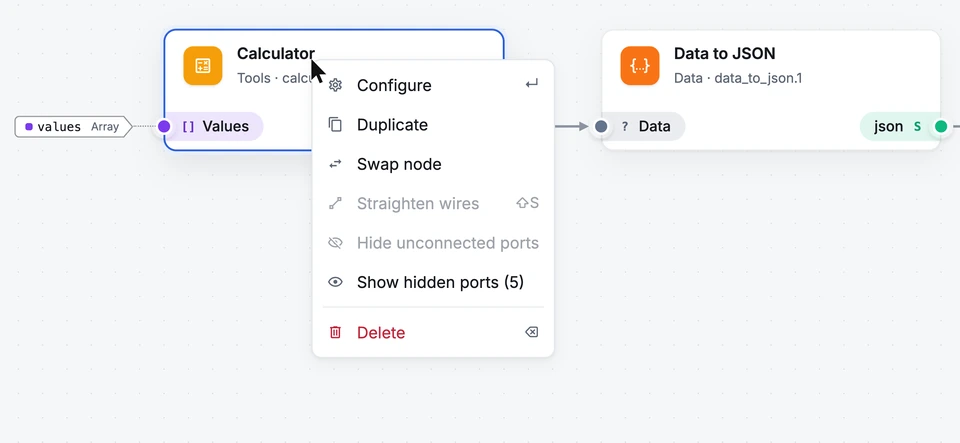
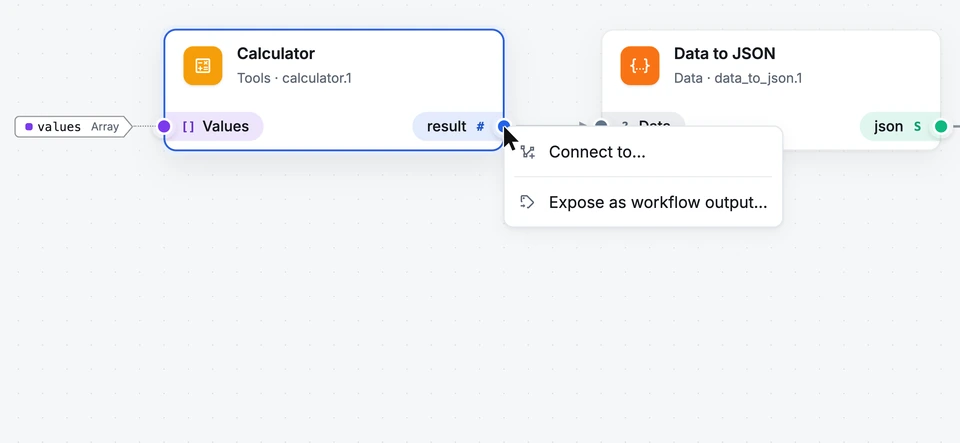
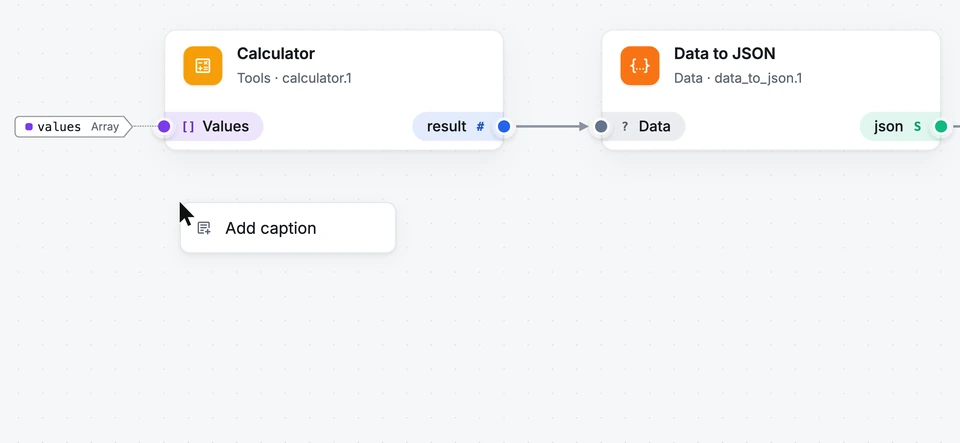
Shortcuts are listed right in the menu, so you pick them up as you go. On a keyboard, Shift+F10 or the Menu key opens the menu for the focused node, or the canvas menu when no node has focus.
Graphite: calm by default
Graphite, the new default theme, uses colour only where it means something. Near-black marks the action you’re about to take, a single blue marks selection and focus, and green, amber and red are saved for how a run went. Everything else steps back, so when a node turns red, you notice.
Drag the slider to compare it with the previous default:
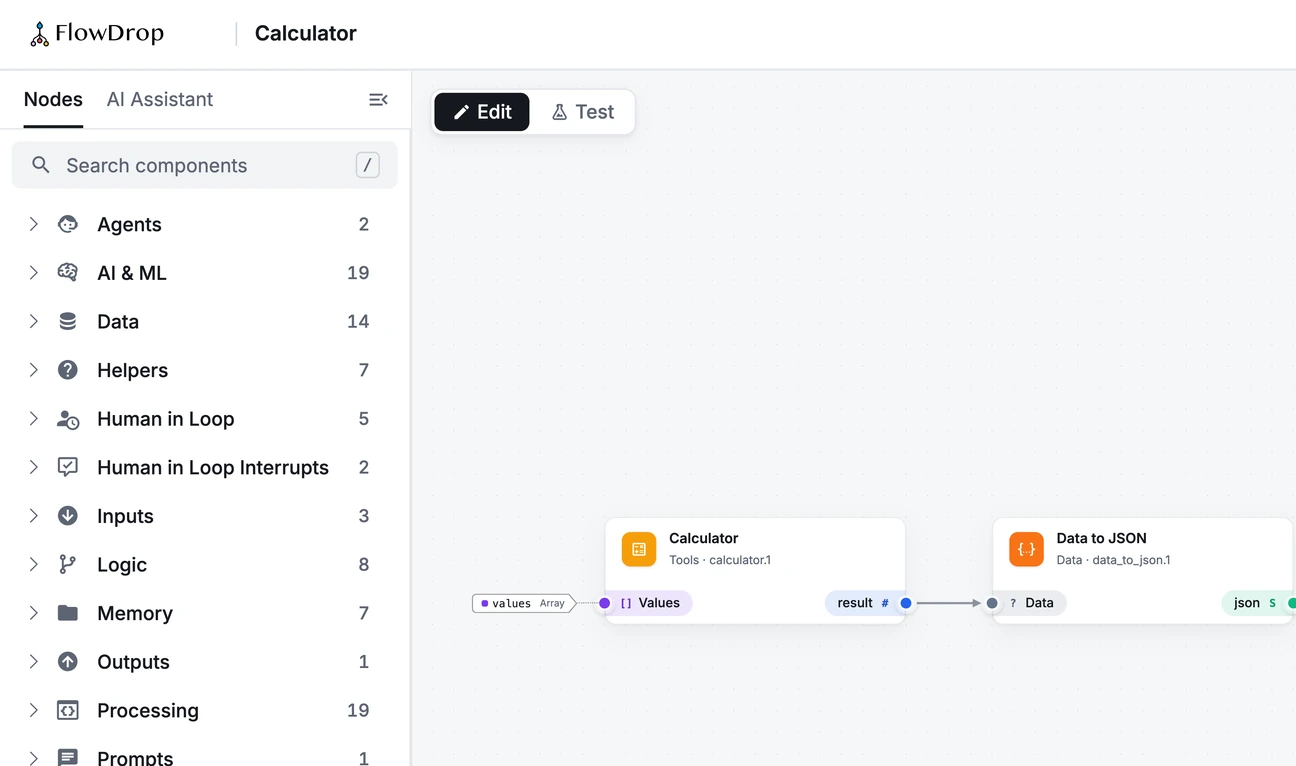
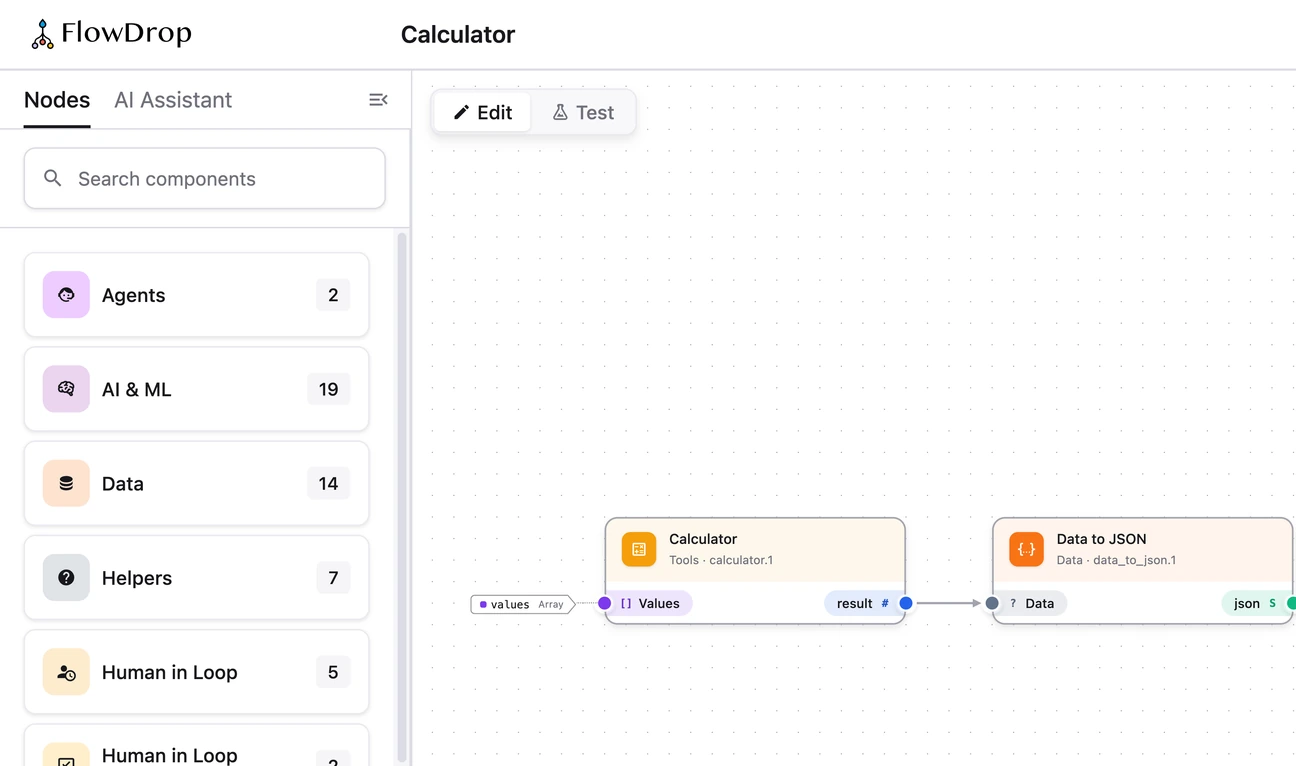
Prefer the old look? It’s one click away in Settings.
Zoom out without getting lost
Big workflows need a big-picture view. As you zoom out, the cards don’t just shrink into unreadable text. They simplify: full cards up close, clean outlines in the middle distance, and a map of coloured blocks from far away. Give it a try:
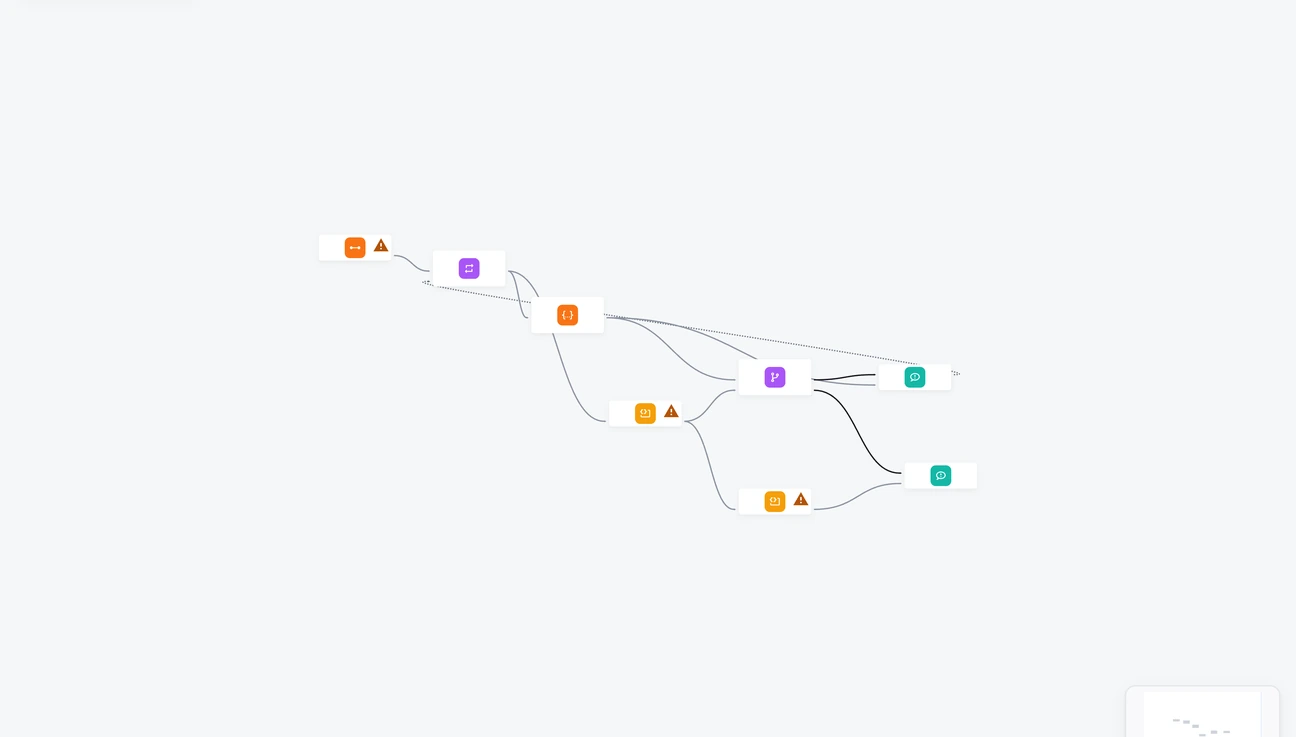
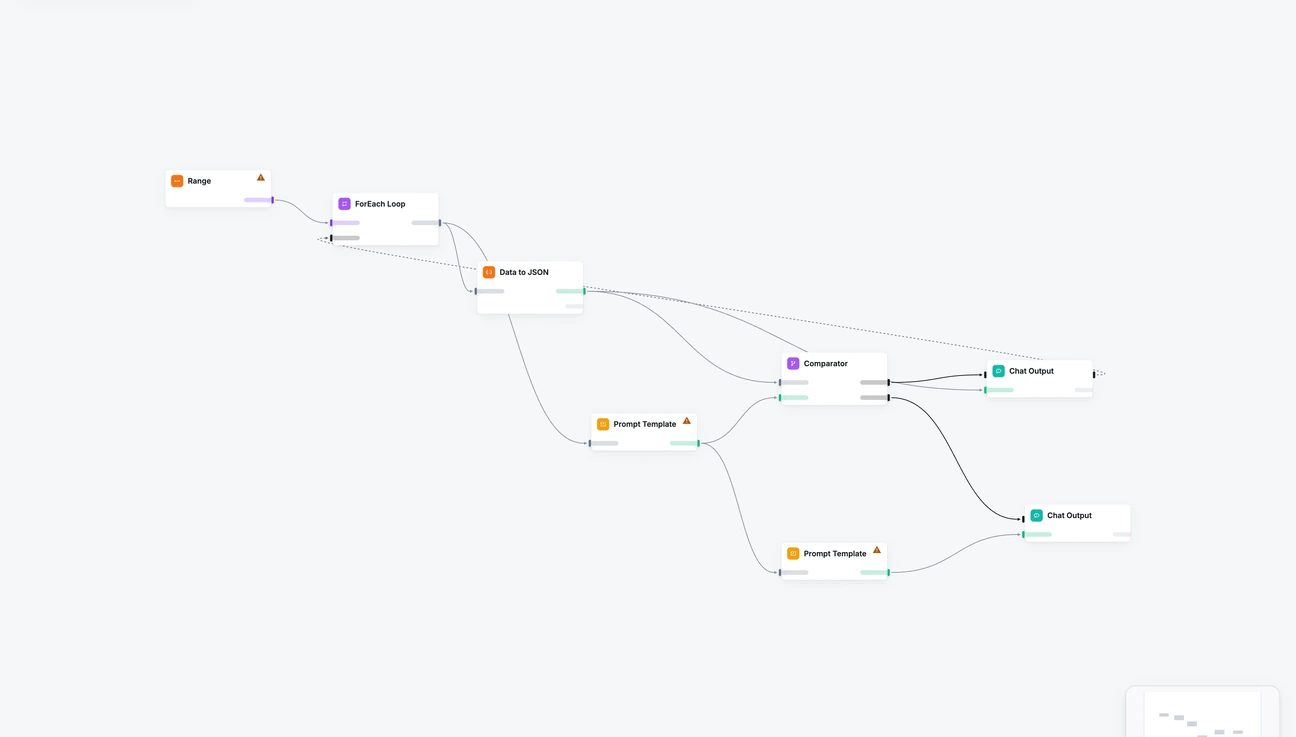
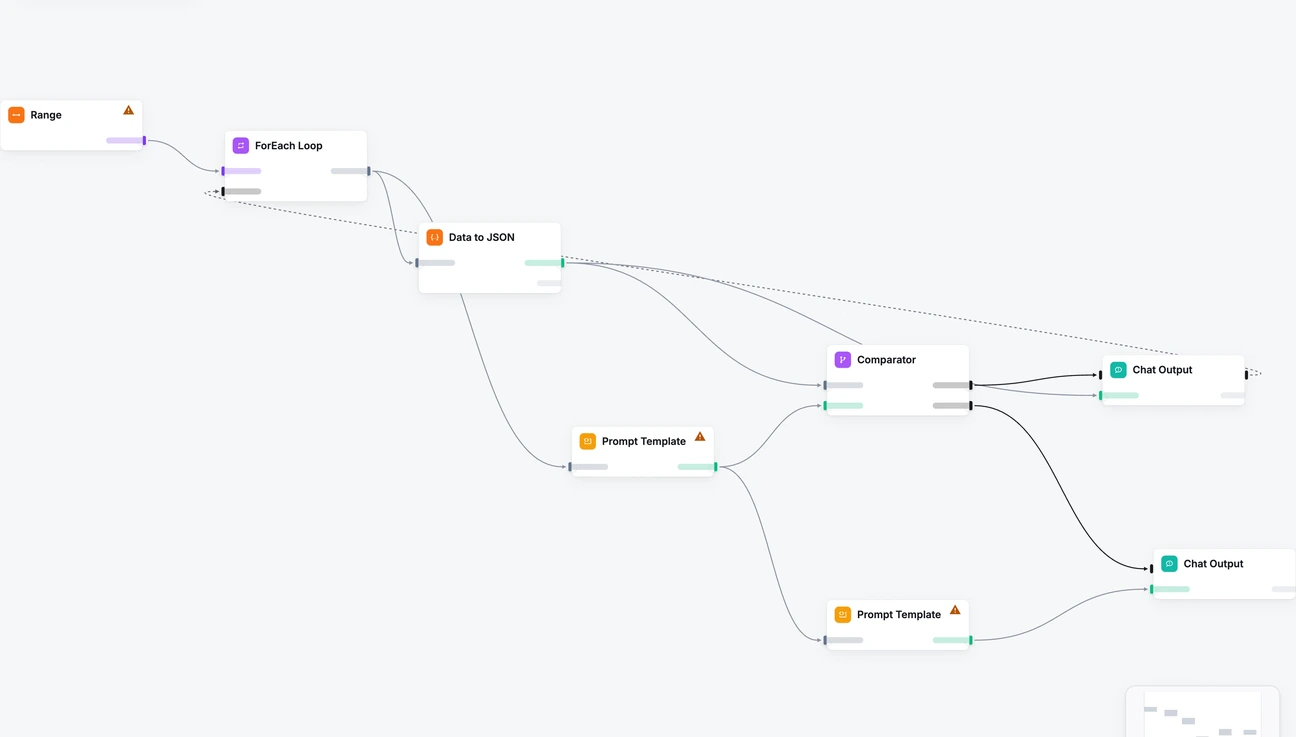
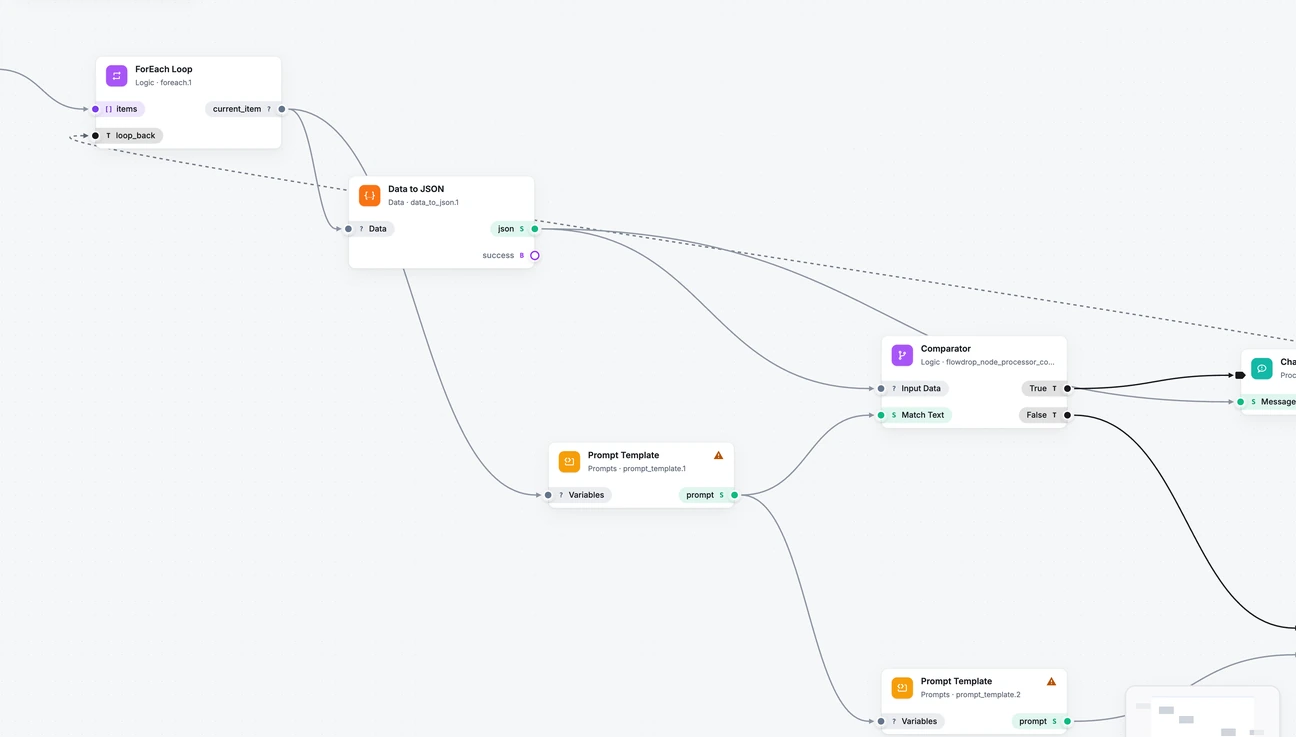
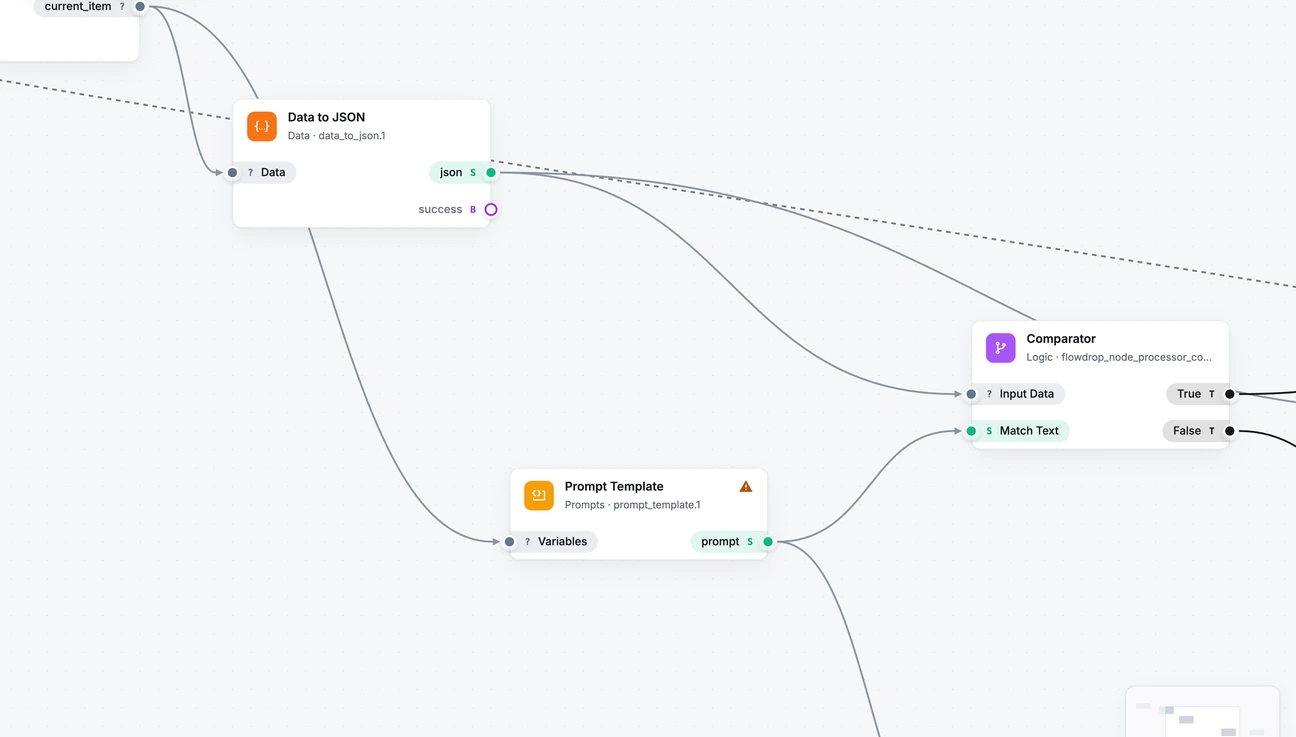
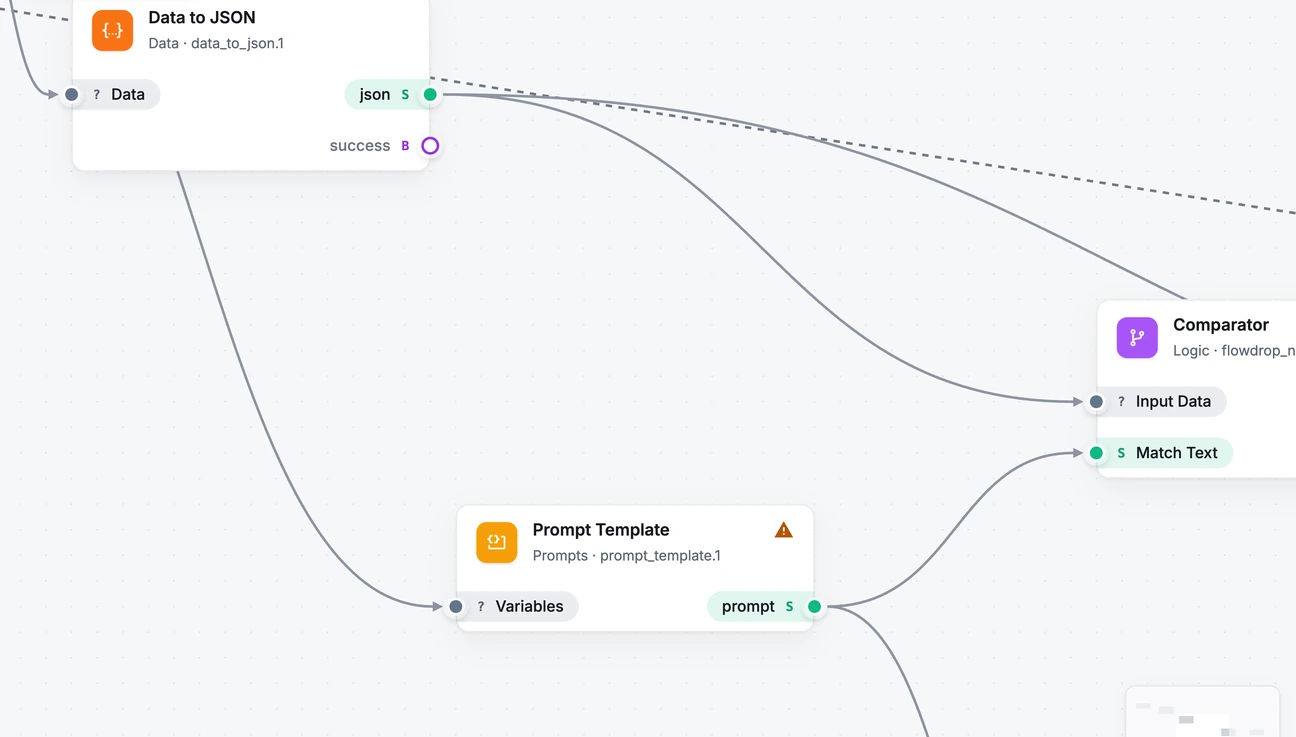 Full cards
A few more things you’ll notice
- Problems at a glance. The navbar counts what’s wrong with your workflow before you hit Save, and many problems come with a fix you can apply in one click.
- Straight wires. Nodes snap into line with their neighbours as you drag them, and Shift+S straightens a whole selection.
- Helpful wiring. Drag a wire and the ports it fits light up. Nothing gets blocked just because two types differ.

Tell us what you think
The new editor is planned for the next minor release of FlowDrop, both the editor on npm and FlowDrop for Drupal 2.7. We’re collecting feedback on the design right now, while every detail can still change.
Play with the demos on this page, and when the release lands, open a workflow, press T, and break something on purpose. Then tell us:
- Did you ever have to leave the editor to work out what happened? What for?
- Can you tell at a glance which node failed, which one is waiting for you, and which ones are done?
- Does Graphite feel calm, or just grey?
- Do the zoom levels kick in where you’d expect them to?
- What still slows you down, however small?
Screenshots are gold. For the editor, open an issue on GitHub; for FlowDrop for Drupal, use the drupal.org issue queue. We read every single one.